 GitHub
Login

Login enables users to access an application or site by entering a user ID and password or via Single Sign On (SSO).
Examples
Anatomy
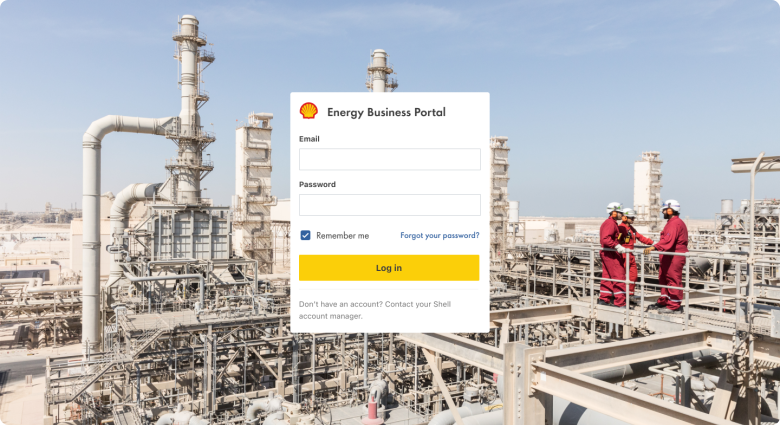
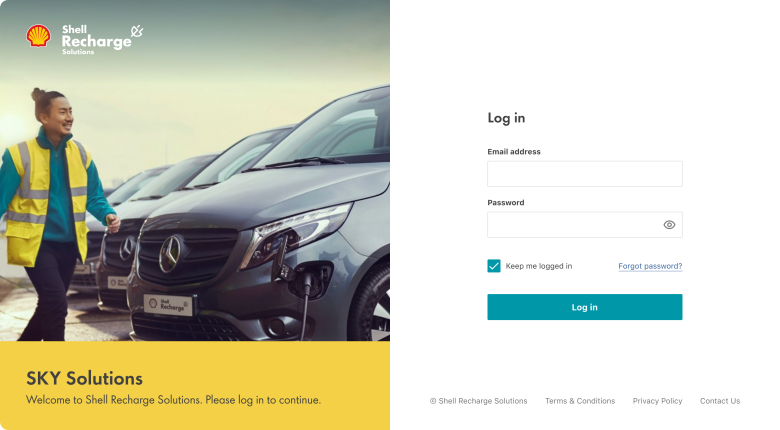
These are the core elements in a login. The sizing and alignment can vary according to how it needs to be presented.
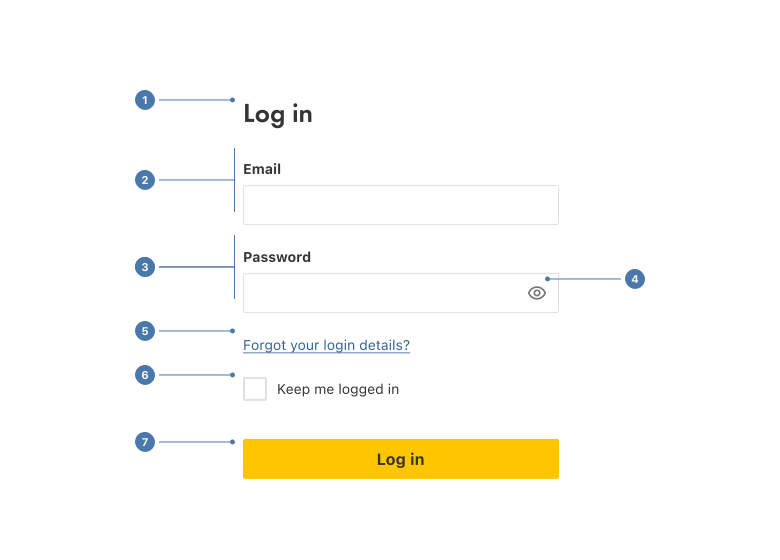
- Title: the heading text ‘Log in’ to match the button label.
- Email: a form field labelled ’Email’.
- Password: a form field labelled ‘Password’.
- Show/hide icon: a toggle button with a show/hide toggle icon.
- Reset link: link text with concise and simple wording to allow users to reset their credentials.
- Checkbox: to obtain acceptance to store user credentials, labelled ‘Keep me logged in’.
- Button: initiates the log in process when pressed, labelled ‘Log in’.
Usage
When a login screen is necessary as the first step in a user’s journey it should be straightforward and frictionless, to improve user experience, protect user data and initiate a positive experience of your product.
When to use
- To access an app or website.
- To log in again after being logged out.
- To resume after inactivity.
Best practice
Keep it simple
Only include the relevant minimum elements required for logging in.
Maintain branding
Include the Pecten with appropriate spacing, any product sub-brand and approved brand colours. Read the Pecten guidelines.
Make it memorable
Allow users to use their email rather than create a username to make logging in easier.
Give help
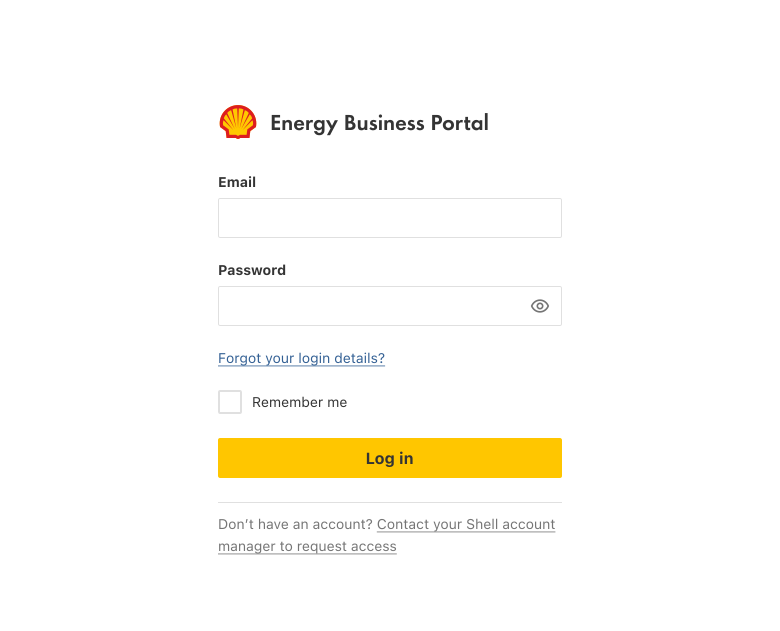
- Use helper text to reduce input errors and the need for error messaging.
- Include a checkbox with clear label text so users can choose to save their login details.
- Add a visibility toggle button so users can choose to show or hide their password.
- Provide a link to help users when they can’t log in, in close proximity to the primary button.
Differentiate log in and sign up
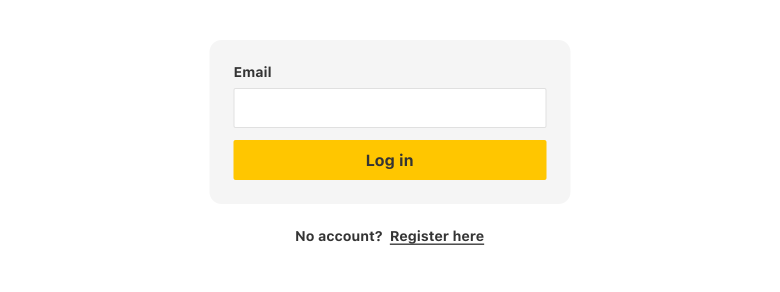
If you include ‘log in’ and 'sign up' or ‘register’ options on one screen, make them separate, distinct and accurate.
Be distinct
Design login buttons to be visually different to ‘sign up’ (registration) buttons.
Be accurate
Write microcopy on button labels and links that says precisely what will happen next.
Passwords
When a password is required, aim to:
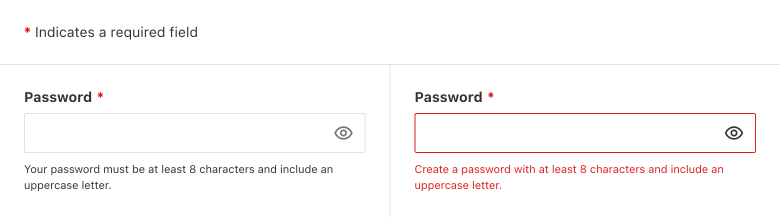
- Help users make them memorable and strong, with guidance or help text on the format and length.
- Include a reset password option with a secure reset process.
- Hide passwords by default to help users in public spaces meet password constraints and prevent mistyped passwords, e.g. toggle visibility of typed passwords.
- Manage incorrect login attempts, e.g. allow several attempts before locking the user out.
- Limit how often users need to change their passwords. This reduces the chance that they forget, choose simple variations or save passwords less securely.
- Include an explanation next to an asterisk (*) for required fields, e.g. ‘* indicates a required field’.
Login options
Progressive authentication
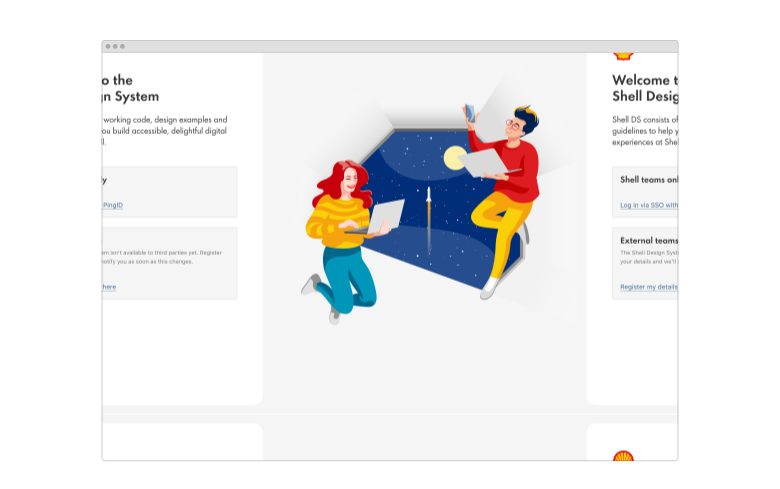
This automatically directs users to the relevant login sequence, according to how they choose to log in, e.g. single sign-on (SSO) or with their email and password.
Single sign-on (SSO)
This allows users to log in to multiple applications and sites with a single authentication, so they don’t need to remember usernames and passwords.
Validation and errors
Validation
Positive validation should be included in your login pattern to reassure users that they have logged in successfully.
Negative validation should occur when a user’s information is incorrect, often in the case of:
- Empty email and password input fields.
- Invalid characters.
- Incorrect format.
Follow this by showing the user an error message that helps them to fix the problem.
Error messages
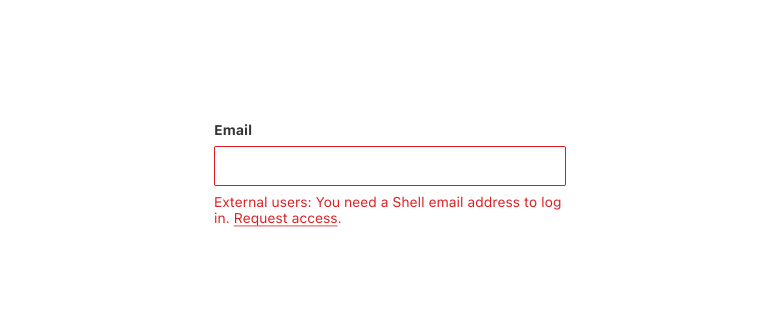
Show an error message when there is a validation error. Write a message that explains what went wrong and how to fix it.
- Put the message text in red.
- Give the input field a red border to visually connect it to the message.
- Connect the error message to the input in code, e.g. by using
aria-describedby. - Help users to resolve the issue with a short and actionable sentence.
- Position the error message close to the input field.
Content
Write log in as two words in the title or labels. It’s an action.
Never write ‘login’ as one word in the title or labels.
Read content guidance for writing error messages.
Accessibility
Shell DS components are programmatically determinable with appropriate semantic markup and are designed to meet colour contrast requirements. If you’re not using Shell DS code, you will need to cover the accessibility considerations for each component in this pattern.
Asterisks for required fields
Using an asterisk to indicate a required state in a form field, e.g. email and password, requires it to be defined at the start of the form, e.g. contained within a ❬abbr❭ element. This allows the asterisk character to be styled larger than the default so that it can be seen by users with impaired vision.
Every effort has been made to ensure that the Shell Design System follows accessibility best practice.
The Shell DS React framework incorporates keyboard operation to support the widest variety of assistive technologies and devices. For any future frameworks other than React, accessibility will need to be reviewed.
Help us to help you by contacting the Accessibility team for support and information regarding any questions relating to accessibility.
Related
Is this page useful for you?
Your feedback helps to improve our documentation.