 GitHub
Button

Buttons are interactive elements which allow our users to perform an action. Multiple types are available for various use cases.
Usage
Depending on the device type buttons are generally fixed and right-aligned for desktops, and fluid on mobile screens. A fluid button has a larger selectable area and fills the width of its container. Fluid buttons exist as part of complementary components like forms or modals.
Do
- Use a button to indicate that an action can be taken.
- Ensure the button label or icon represents the button's action.
- Include sufficient whitespace around the button.
- Feature only one primary call to action per screen.
- Differentiate the appearance of primary and secondary buttons.
Don't
- Avoid using button icons purely for decoration.
- Never override colours.
- Avoid non-specific labels which do not explain the action.
Anatomy
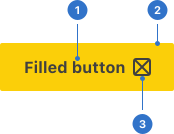
- Label: explains the button's action.
- Container: contains the button content.
- Icon: represents the button action.
Live playground
Types
Variants
Each variant of the button serves a function and must be implemented consistently so that users know which action needs to be taken.
- Filled buttons are used for the primary call to action (CTA) on the screen. These buttons should appear only once per screen, however this is not applicable for an application header, modal dialog or side panel.
- Outlined buttons are used for secondary actions on the page. Outlined buttons are usually used to complement primary buttons, for example 'Back' or 'Cancel'.
- Transparent buttons are used for independent or less important actions. Transparent buttons can be used alone or in conjunction with filled buttons when there is more than one CTA.
Sentiments
- Positive is styled to encourage the user to initiate an action.
- Negative is styled to communicate that the user should use caution before initiating an action.
States
- Default communicates that a component or element is interactive.
- Hover provides feedback on mouseover, indicating the input is interactive.
- Focused communicates when a user has highlighted an element, using an input method such as a keyboard or voice.
- Disabled indicates the button is not interactive and cannot be used.
- Loading indicates a process is in progress.
Format
Size
Buttons come in four different sizes: extra-small, small, medium (default) and large.
Icon placement
By default, the icon is placed to the left of the label. Alternatively, it can be placed to the right.
Content
Be concise
Button text should be concise. Use between one and four words, with fewer than 20 characters and spaces. Don’t use punctuation marks such as full stops or exclamation marks.
Use sentence case
Button text should always be in sentence case. Never capitalise letters to emphasise a specific button.
Write labels as verbs
A button represents an action, so its label needs to be a verb to reflect what the button will do. Be specific rather than generic. Labels written as nouns or adjectives can be unclear and confusing.
State the outcome
Ensure that a button label is precise about the outcome of the action it represents. Be consistent with the word or phrase used on button labels throughout.
Behaviours
Tooltip when a label is hidden When the button label is hidden, show a tooltip that displays the label text on hover.
Text overflow
When the button text is too long for the horizontal space, it wraps to form another line.
Usage guidelines
Large screens
Medium-sized buttons are the most frequently used option. Use the other sizes sparingly to create a hierarchy of importance within the page. Touch screens Use large buttons to increase the tappable area.
Only one high-emphasis button
Aim to create a visual order between buttons. Using a single high-emphasis button communicates that other buttons are less important in the visual order. A single high-emphasis button focuses maximum attention from your users.
Button groups
Use medium and low-emphasis buttons to initiate less significant tasks, and pair them with a high-emphasis button. Only complement CTAs if there is a striking relationship between them.
Button placement
Left-justified
Use for banner CTAs, in-page forms, and nested buttons in components such as cards.
Right-justified
Use for inline alerts, inline field buttons, progressive forms, wizards, data tables and modals.
Full-span
Use full-span buttons when width is limited, and/or to increase the interactive area, for example in drawers, modals and cards.
Accessibility
Shell DS components are programmatically determinable with appropriate semantic markup and are designed to meet colour contrast requirements. If you’re not using Shell DS code, you will need to cover the accessibility considerations for each component in this pattern.
Screen readers
Button labels must be clearly identified by words which make sense to screen reader users.
Keyboard interaction
All users must be able to use the keyboard to press buttons via the enter or space keys.
Every effort has been made to ensure that the Shell Design System follows accessibility best practice.
The Shell DS React framework incorporates keyboard operation to support the widest variety of assistive technologies and devices. For any future frameworks other than React, accessibility will need to be reviewed.
Help us to help you by contacting the Accessibility team for support and information regarding any questions relating to accessibility.
Related
Is this page useful for you?
Your feedback helps to improve our documentation.