 GitHub
Breadcrumb

A breadcrumb is a secondary navigation pattern. It allows our users to understand the hierarchy of levels and how to navigate them. Breadcrumbs show someone their current location relative to the information architecture, and allow them to move quickly between levels.
Usage
A vertically stacked list of headers that can be clicked to reveal or hide content associated with them.
Do
- Use breadcrumbs for two or more levels of navigation, to show the user's place in the content hierarchy.
- Ensure breadcrumbs are placed close to their associated content.
- List the current page as the final breadcrumb in the trail.
Don't
- Breadcrumbs are never used for single-level navigation.
Anatomy
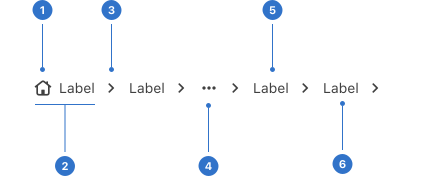
- Icon: an interactive visual symbol within the trail.
- Item: a step in the breadcrumb.
- Separator: an icon or character used to separate the trail of page links.
- Ellipsis: three dots to indicate invisible links truncated in the thread.
- Label: a clickable link that navigates to a page.
- Current label: a non-interactive page title, displayed at the end of the trail.
Live playground
States
- Hover appears with an underlined style, and communicates that the user has placed a cursor over the breadcrumb.
- Focus appears with a focus ring around the title, and communicates that the user has highlighted an action.
Format
Size
Breadcrumb has small and medium sizes.
Separators
- Default separator is a chevron.
- Icon has custom separators such as arrows.
- Single character separates breadcrumb text with a forward slash.
Icons
- No icon, when the breadcrumb does not have an icon.
- With icon, to support an individual breadcrumb item label.
- Icon only, if the breadcrumb has an icon with no label.
Icon placement
By default, the icon is placed to the left of the label. Alternatively, it can be placed to the right.
Placement
Place breadcrumbs next to their relevant content, to indicate its hierarchy. Navigational breadcrumbs are usually placed at the top of the page.
Behaviours
Truncation
A large number of items can be truncated and referenced by an ellipsis.
Popover
An individual item in a breadcrumb can trigger a popover to provide further options.
Content
A breadcrumb label should be clear and concise, naming the location which it links to.
Accessibility
Shell DS components are programmatically determinable with appropriate semantic markup and are designed to meet colour contrast requirements. If you’re not using Shell DS code, you will need to cover the accessibility considerations for each component in this pattern.
Breadcrumbs create a landmark to let users understand where they are on the current content hierarchy. They should always be placed in the same relative location on every page.
Every effort has been made to ensure that the Shell Design System follows accessibility best practice.
The Shell DS React framework incorporates keyboard operation to support the widest variety of assistive technologies and devices. For any future frameworks other than React, accessibility will need to be reviewed.
Help us to help you by contacting the Accessibility team for support and information regarding any questions relating to accessibility.
Related
Is this page useful for you?
Your feedback helps to improve our documentation.