 GitHub
Drawer

A panel which slides in from any edge of the screen and is layered on top of content.
Usage
A drawer provides an area for additional information, or actions that our users can interact with, without leaving the page they are on.
Do
- Use to display supplemental information about an item.
- Use to make simple, contextual tasks available.
Don’t
- Avoid populating with too much content where a new page is more suitable.
- Avoid using to confirm an action or to provide small pieces of information where a modal or tooltip might be more suitable.
Anatomy
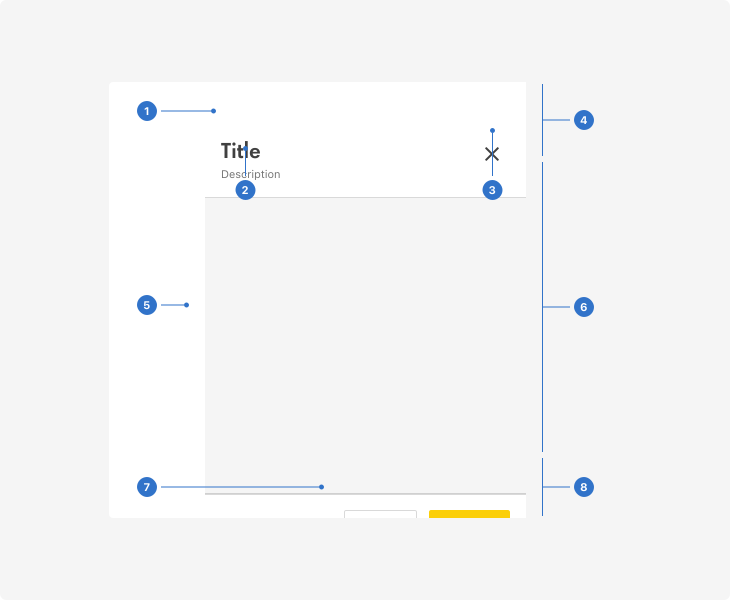
- Title: the heading on top of the drawer.
- Description: a supporting caption.
- Close button: an icon for dismissing the panel.
- Header: the content section above the main content area.
- Elevation: the shadow that adds depth to the panel.
- Content area: represents the space for drawer content.
- Links: buttons and clickable components.
- Footer: the content section below the main content area.
Live playground
Types
Drawer has two types, with variants to include a header, a footer or both.
- Inline: the drawer pushes content in the active direction.
- Elevation: the drawer overlays content, and a scrim overlays the page.
States
Drawers are either be open or closed.
Format
Size
Drawers are small, medium or large.
Padding
Padding for drawers is either tight or generous. The body padding can also be removed when you need content to fit flush with the edge of the drawer.
Content
- All text within a drawer should be concise, actionable and clear.
- The drawer should utilise the loading pattern to indicate content is loading.
- Title and description should use a brief, single-line sentence or phrase.
- Avoid using punctuation such as full stops, commas or semicolons.
- Only use a full stop in a full sentence.
Behaviours
Inline drawers open at the same level as the page content and push the page content to display the drawer. Elevated drawers overlay the page content.
- The drawer slides in from the edge; left, right, top or bottom.
- By default, the drawer sits above all page content.
- Only one drawer can be open on a page at a time.
- A drawer needs a user’s action to open it.
- A drawer is dismissed with the close button or esc key.
- When content overflows the drawer height, it scrolls vertically under the header.
- The drawer’s maximum width should not exceed the available width of the screen and should fill the screen on small screens.
Accessibility
Shell DS components are programmatically determinable with appropriate semantic markup and are designed to meet colour contrast requirements. If you’re not using Shell DS code, you will need to cover the accessibility considerations for each component in this pattern.
- Drawer states (expanded/collapsed) should be programmatically identifiable to assistive technologies, such as screen readers.
- The focus should move to the side drawer once opened. An intentional keyboard trap keeps tab order (looped) within the drawer until it is closed. This is so a user cannot focus on anything outside or under the drawer.
- Both the esc key and close icon should dismiss the side drawer.
Every effort has been made to ensure that the Shell Design System follows accessibility best practice.
The Shell DS React framework incorporates keyboard operation to support the widest variety of assistive technologies and devices. For any future frameworks other than React, accessibility will need to be reviewed.
Help us to help you by contacting the Accessibility team for support and information regarding any questions relating to accessibility.
Related
Is this page useful for you?
Your feedback helps to improve our documentation.