 GitHub
Form field

A form field is used within a form pattern to add a title, description and helper text for input components.
Usage
Do
- Use a label consistently throughout a form to help prevent errors.
- Use form fields to label and provide additional information for input components.
- Use a form field to validate a field with rules.
Anatomy
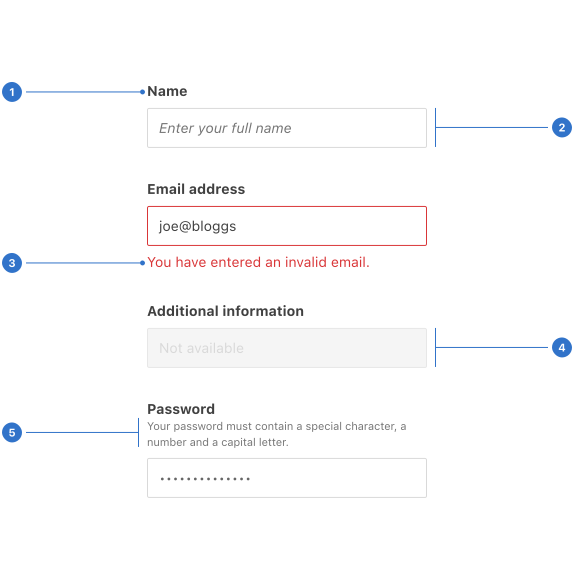
- Label: the title used for the input field.
- Text input: a component for text entry within a form.
- Helper text: a hint to support the user with input.
- Disabled field: a text field that cannot be edited.
- Description: a supporting paragraph.
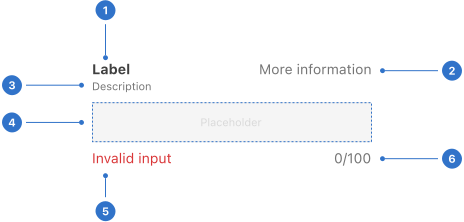
- Label: the title used for the input field.
- Top helper text: additional support information.
- Description: a supporting paragraph.
- Input slot: an area for Select, Text input, Date picker or other form of input.
- Bottom left helper text: displays validation messages on the bottom left.
- Bottom right helper text: displays validation message on the bottom right.
Live playground
States
- Default is the initial state prior to interaction.
- Success/positive communicates input is correct.
- Error/negative indicates an input error.
- With mandatory input indicates that the form field requires mandatory input, for entering information such as a password.
Format
Size
A form field can be large, medium or small.
Alignment
There are multiple alignment options for form field, to allow for a variety of use cases.
Content
Helper text provides messages and information to users. Text should be concise and purposeful so users understand what action to take.
Colour
Semantic colour is used to indicate a positive or negative message in helper text.
Accessibility
Shell DS components are programmatically determinable with appropriate semantic markup and are designed to meet colour contrast requirements. If you’re not using Shell DS code, you will need to cover the accessibility considerations for each component in this pattern.
Use focus styling
Strong visual cues on form fields will enable keyboard navigators to know which fields are being selected. When the tab key selects a field, it should be surrounded by a box with a contrasting or strong colour. It must meet the latest WCAG colour contrast standards for UI elements.
-
Use a clear visual label - avoid placeholder text
Since it is faint and temporary, placeholder text is inaccessible for visually impaired users who have trouble reading the low-contrast text. In addition, screen readers often fail to detect placeholder text.
-
Code a programmatic label for screen readers
The relationship between labelled elements and the form field itself must be programmatically identifiable in order for a screen reader user to understand how to interact with it.
Every effort has been made to ensure that the Shell Design System follows accessibility best practice.
The Shell DS React framework incorporates keyboard operation to support the widest variety of assistive technologies and devices. For any future frameworks other than React, accessibility will need to be reviewed.
Help us to help you by contacting the Accessibility team for support and information regarding any questions relating to accessibility.
Related
Is this page useful for you?
Your feedback helps to improve our documentation.