 GitHub
Toggle button

A toggle button is a versatile, compact element which represents an input, attribute or action.
Usage
Toggle buttons allow users to trigger specific actions and indicate two opposing states. They can be used to prompt further options on a popover, and are compact for use where space is limited.
Do
- Use a toggle button to allow users to trigger actions and display the effect of that action.
- Ensure toggle buttons make it easier for the user to make decisions in context, such as filtering content or completing a task.
- Utilise toggle buttons in a group where each of them represents a separate, exclusive interaction.
- Ensure each toggle button behaves independently and does not impact other selections.
Don’t
- Avoid using a toggle button to appear as a consistent call to action, use a button instead.
Anatomy
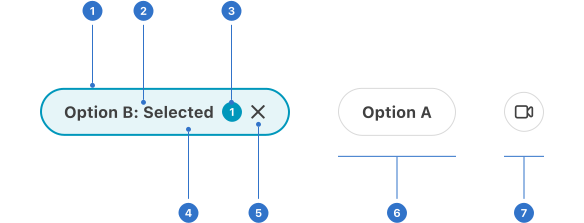
- Border: a linear frame around the button.
- Label: the toggle button name or title.
- Badge: indicating numeric value or relevant signage.
- Background: the colour of the component backdrop.
- Icon: a graphical element representing action.
- Button with label: a visual cue indicating the toggle has been selected by keyboard or voice.
- Button with icon only: a visual cue indicating the toggle has been selected by keyboard or voice.
Live playground
States
A toggle button has default, hover, pressed, focused, loading and disabled states. The appearance of the button border adds visual information to indicate a change in state.
- Default communicates that a component or element is interactive.
- Hover communicates when a user has placed a cursor above an interactive element.
- Pressed is initiated by user tap, cursor, mouse or keyboard on an interactive element.
- Focused communicates when a user has highlighted an element, using an input method such as user tap, cursor, mouse or keyboard.
- Loading indicates the button is loading. The button text is hidden and a spinner is shown in its place, while maintaining the width that it would have if the text were visible.
- Disabled indicates that the element is not interactive and cannot be selected.
Selection state
- Active indicates that the toggle button has completed an action.
- Inactive is the default, unselected state.
Format
Size
Toggle buttons are available in extra-small, small, medium and large.
Icon
- None only has a label.
- Left/right this position is interchangeable according to the use case.
- Icon only has no label.
Placement
Position toggle buttons so that they show a clear and relevant relationship with the context or task they relate to in the UI.
Content
- Label text should relate specifically to the action which the toggle button will initiate, to ensure users understand the function of the button and what to expect when they interact with it.
- Icons should be unambiguous and clearly communicate the function of the toggle button, particularly if no label is used.
Alignment of labels and icons
Labels and icons can be aligned beside each other in the toggle button. Icon-only toggle buttons have the icon centred within the button.
Behaviours
Toggle buttons behave in various ways according to specific use cases.
- Action: to trigger an action and display its status. For example, a ‘show comments’ toggle button may trigger the display of comments and indicate they are displayed.
- Filter: to represent a number of filters and indicate which are active. For example, to show a number of dimensions for filtering data that a user wants to enable and disable quickly, and display those which are active.
- Choice: to offer a number of selectable options. For example, to provide additional options so that the user can choose those they wish to add.
Accessibility
Shell DS components are programmatically determinable with appropriate semantic markup and are designed to meet colour contrast requirements. If you’re not using Shell DS code, you will need to cover the accessibility considerations for each component in this pattern.
Assistive technologies
- The state of the toggle button must be programmatically identifiable for assistive technology (AT).
- The label must be programmatically identified as relating to the toggle button.
- The role of the toggle button must be programmatically identifiable to AT so that a screen reader announces this to the user.
- Programmatic notification should be provided for each visual indicator that content or loading or the item/element is busy.
- Changes to the state (e.g. loading) should be programmatically notified, preferably with
aria-politeor similar, non-disruptive means.
Text alternatives
Icon-only toggle buttons must have a human-readable/understandable text alternative provided. Label + icon toggle buttons must either have a text alternative provided for the icon or the icon may be programmatically identified as 'decorative' within the code, so it is not revealed to the user by AT.
Keyboard interaction
All users must be able to use the keyboard to select toggle buttons via the enter or space keys.
Every effort has been made to ensure that the Shell Design System follows accessibility best practice.
The Shell DS React framework incorporates keyboard operation to support the widest variety of assistive technologies and devices. For any future frameworks other than React, accessibility will need to be reviewed.
Help us to help you by contacting the Accessibility team for support and information regarding any questions relating to accessibility.
Related
Is this page useful for you?
Your feedback helps to improve our documentation.