 GitHub
Radio button

Radio buttons allow a user to select a single item from a list of options. When a new item has been selected, the earlier choice is automatically deselected.
Usage
Do
- Use a radio button to select a single option in a list.
Don't
- Use when selecting multiple options, use a checkbox instead.
- If there is a need to toggle items on or off, use a toggle button instead.
Anatomy
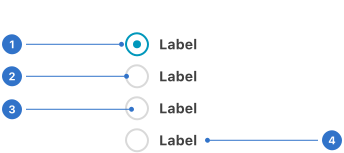
- Input: a visual cue indicating selection status.
- Border: a linear frame around the radio button.
- Background: the interior colour.
- Label: the radio button name or title.
Live playground
States
Radio buttons can be selected or deselected. Only one radio button can be selected at a time.
- Default buttons has one state preselected.
- Hover provides feedback on mouseover, indicating the input is interactive.
- Focused communicates when a user has highlighted an element, using an input method such as a keyboard or voice.
- Disabled indicates the button is not interactive and cannot be used.
- Invalid indicates an error on selection.
Selected
- False: the radio button is not selected by the user.
- True: the radio button is selected by the user.
Format
Size
Size (small, medium and large) allows a user to select the size of the radio button for the context they are working within.
Grouping
Radio groups can be stacked either horizontally or vertically. By default, radio groups are vertical. Use a horizontal radio group when vertical space is limited.
Emphasis
By default, radio buttons are emphasised (with colour) to provide maximum visual prominence. This is best for forms, settings, lists and other situations where a radio button needs to be noticed. The non-emphasised option is available when the radio button needs to be less visually noticeable on the page.
Content
Radio button labels
- Always use clear and concise labels for radio buttons.
- Labels appear to the right of radio button inputs.
Text overflow
- When a radio button's label is too long for the horizontal space available, it wraps to form another line.
- Ensure that text wraps beneath the radio button so the control and label are top aligned.
Behaviours
Mouse or touch
Users can trigger an item directly by pressing the radio button input or its label. Having both regions interactive creates a more accessible target.
Keyboard focus
One radio button should be selected by default. Users can navigate between radio button inputs by pressing the up or down arrow keys. Users can trigger a state change by pressing space while the checkbox input has focus.
Accessibility
Shell DS components are programmatically determinable with appropriate semantic markup and are designed to meet colour contrast requirements. If you’re not using Shell DS code, you will need to cover the accessibility considerations for each component in this pattern.
- If a label is used to indicate a grouping of radio buttons, the fieldset element should be used to programmatically group the related radio buttons and must wrap the radio group.
- If a fieldset is used, the legend tag should be used to define a caption (the group label) for the fieldset and must define the group's purpose.
- Each label must include for="input-id" to be associated with its input.
- Custom elements (non-native HTML elements) will require keyboard event listeners and roving tabindex.
- Do not insert interactive elements in between radio inputs.
Every effort has been made to ensure that the Shell Design System follows accessibility best practice.
The Shell DS React framework incorporates keyboard operation to support the widest variety of assistive technologies and devices. For any future frameworks other than React, accessibility will need to be reviewed.
Help us to help you by contacting the Accessibility team for support and information regarding any questions relating to accessibility.
Related
Is this page useful for you?
Your feedback helps to improve our documentation.