 GitHub
Select

Select lets users choose one or several items from a list.
Usage
Do
- Use when you need to obtain the selection of one or multiple items.
- Use when the number of items exceeds a number which can be comfortably be surfaced on the page.
Don’t
- Avoid using select when there are fewer than three items to choose from, and a component such as checkbox or radio button is more suitable.
- Don’t rely on the placeholder as a label for select.
Anatomy
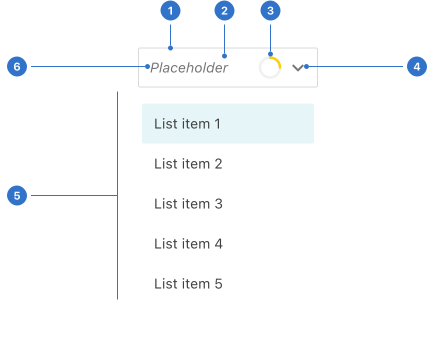
- Border: the linear frame around the select field.
- Background: the colour of the component backdrop.
- Loading: animation to indicate an action is being performed.
- Icon: a chevron signalling dropdown menu functionality.
- Popover: a revealed panel with content.
- Placeholder: a text example before it’s replaced by written text or a label.
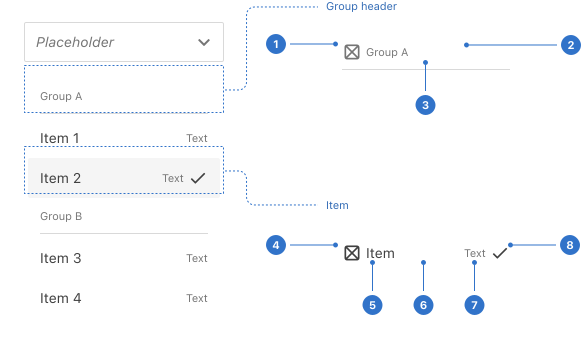
- Header icon: a visual symbol supporting the label.
- Header label: a section title
- Divider: a border used to separate the sections
- Icon: a visual symbol supporting the label.
- Label: the name or title of the tab.
- Background: the colour of the component backdrop.
- Additional text: a secondary label.
- Selected icon: A tick symbol signaling a list item is selected.
Live playground
Types
- Single: only one item can be selected from a list of options.
- Multiple: many items can be selected from a list of options.
- Native: uses native select HTML element.
Variants
- Searchable: allows a user to input text and search for items.
States
Input
- Default indicates that the input is interactive.
- Hover provides feedback on mouseover, indicating the input is interactive.
- Focused communicates when a user has highlighted an element, using an input method such as a keyboard or voice.
- Disabled indicates the element is not interactive and cannot be used.
- Invalid indicates an error on selection.
- Loading indicates a process is in progress.
Item
- Default indicates that the item is interactive.
- Hover provides feedback on mouseover, indicating the input is interactive.
- Focused communicates when a user has highlighted an element, using an input method such as a keyboard or voice.
- Selected indicates the items which have been chosen.
- Disabled indicates the element is not interactive and cannot be used.
Format
Size
The select component is available in large, medium (default) and small sizes which can be used depending upon the context.
Group header
Grouped items are indicated and separated by a group header. A header can display an icon which can be positioned left or right.
Item
Each item can display an icon and additional text which can be positioned below the label or aligned right.
Behaviours
Searching
A select allows a user to input text, to quickly search and jump to the item they require.
Text overflow
Text which overflows will be hidden behind an ellipsis.
Item wrapping
In a multi-select, tags will wrap to a new line when required.
Empty state
When a select is searchable an empty state will be displayed if no items are found.
Accessibility
Shell DS components are programmatically determinable with appropriate semantic markup and are designed to meet colour contrast requirements. If you’re not using Shell DS code, you will need to cover the accessibility considerations for each component in this pattern.
- The descriptive text which explains what the select is for, must be associated with the select options using label elements.
- Use clear and concise names for options to assist users' understanding.
- Avoid repeating names at the beginning of a list of options.
- Give a unique ID to each option.
Every effort has been made to ensure that the Shell Design System follows accessibility best practice.
The Shell DS React framework incorporates keyboard operation to support the widest variety of assistive technologies and devices. For any future frameworks other than React, accessibility will need to be reviewed.
Help us to help you by contacting the Accessibility team for support and information regarding any questions relating to accessibility.
Related
Is this page useful for you?
Your feedback helps to improve our documentation.