 GitHub
Popover

A popover is used to trigger and display an overlay, providing further information or to obtain user input.
Usage
Do
- Use popovers to progressively disclose information and content.
- Keep popover content related to a single context.
- Use popovers to trigger and provide menu options.
Don’t
- Avoid having long labels that require users to read more.
- Avoid including too much content within a popover where a modal or drawer is more suitable.
Anatomy
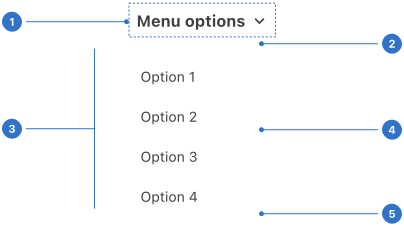
- Trigger: an element which opens the popover when pressed.
- Arrow: a pointer indicating the source of the popover.
- Overlay: the area containing the popover content.
- Background: the colour of the component backdrop.
- Elevation: the shadow around the popover panel.
Live playground
Types
The popover is available with or without an arrow. An arrow can be included to strengthen the association between the overlay and the content which triggered the popover to open.
States
- Disabled indicates that the popover is not interactive and cannot be used.
- Inactive is the default, unselected state.
- Open displays the popover overlay.
- Hover communicates when a user has placed a cursor on the popover trigger.
- Focused communicates that the input has received focus from a click, tap, or a keyboard tab key.
Format
Position
Position the popover next to the content it is associated with. This content can be anywhere on the page.
Overlay position
Depending on where the content trigger is on a page, the popover can appear above, below or beside the content. The arrow will be placed according to the overlay’s position.
Behaviours
Direction
Popovers can open above, below or beside content depending on the position on the screen. By default, a popover overlay will open below the trigger.
Interactions and triggers
A popover can be triggered on hover, left or right click or on a keypress.
Accessibility
Shell DS components are programmatically determinable with appropriate semantic markup and are designed to meet colour contrast requirements. If you’re not using Shell DS code, you will need to cover the accessibility considerations for each component in this pattern.
- Keep popover option names clear and concise to ensure they are understandable.
- Do not repeat words or phrases to begin a set of options.
- Use a validation message for input errors.
- Ensure that any changes in context can be confirmed manually by the user and not be triggered by a change in the selection of the list. This means that if a user is exploring the list with the keyboard, changes should only be triggered once they have made their selection, left the popover, and confirmed their choice, for example, with a button.
Keyboard users
Tab to the popover, press alt/option + down arrow to open the list, then use down/up arrow to select the item, then press enter.
Every effort has been made to ensure that the Shell Design System follows accessibility best practice.
The Shell DS React framework incorporates keyboard operation to support the widest variety of assistive technologies and devices. For any future frameworks other than React, accessibility will need to be reviewed.
Help us to help you by contacting the Accessibility team for support and information regarding any questions relating to accessibility.
Related
Is this page useful for you?
Your feedback helps to improve our documentation.