 GitHub
Popconfirm

Popconfirm is a compact and simple dialog to confirm or cancel a user’s action.
Usage
Do
- Use to make users aware of a binary choice to confirm or cancel an action.
- Display simple information related to the action.
- Ensure that the popconfirm is in close proximity to the element it supports.
Don’t
- Avoid using a popconfirm for displaying large amounts of content, use a modal instead.
- Never use vague action words in button labels like 'OK' or 'Continue'.
Anatomy
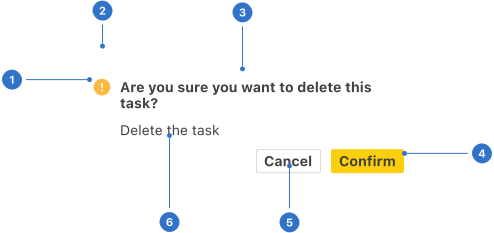
- Icon: visual signage to complement the title or message.
- Arrow: a pointer indicating the source of the dialog.
- Title: text explaining the result of confirm or cancel actions.
- Primary button: labelled with the main action verb to confirm the action.
- Secondary button: labelled with the secondary action verb to cancel the action.
- Description: supporting text to reinforce the action of the popconfirm.
Live playground
Sentiment
- Warning indicates something is critical or requires caution and should be noticed.
- Negative indicates something is bad, wrong, unsuccessful or dangerous and should be noticed.
- Positive indicates something is good, correct, successful or safe and should be noticed.
Format
Size
Popconfirm is available in small, medium (default) and large.
Alignment
It is important to match the popconfirm arrow closely with its associated element, particularly when multiple elements are close to each other.
Placement
A popconfirm may be positioned to the right, left, bottom, or top of the related element. It is important that it does not cover content which is essential to the user’s tasks, bleed off the page or disappear behind other content.
Content
Ensure that popconfirm content is written to guide the user to make a decision about an action. The tone should be informative, giving users enough guidance at every point in the flow to make a decision and continue with confidence.
- Be consistent - repeat the same action words.
- Use sentence case and a question mark if asking a question.
- Avoid humour or jargon.
Title
- Write a clear, simple sentence that helps the user decide if they want to confirm or cancel the action in the main screen.
- Repeat the same action word for both the action prompt and the title sentence. For example, if the action is ‘Delete’, then ask ‘Do you want to delete this task?'
- Use 'Do you want...' to create a reassuring tone in questions.
- Avoid 'Are you sure...' in questions - it suggests the user could be making a mistake.
Description
- Write a simple, short statement or question depending on the context of the action.
- Use the same action word as in the title, to reiterate what will happen when the user chooses to confirm or cancel.
Button labels
- Use a clear action word which states exactly what will happen when the user interacts with it.
- Avoid vague words such as ‘OK’ or ‘Continue’.
Behaviours
Dismissing the popconfirm
The following actions will dismiss a popconfirm:
- Completing a task by pressing the primary button.
- Cancelling a task by pressing the secondary button which returns the user to the previous context and undoes all applied changes.
- Clicking elsewhere outside the popconfirm.
Accessibility
Shell DS components are programmatically determinable with appropriate semantic markup and are designed to meet colour contrast requirements. If you’re not using Shell DS code, you will need to cover the accessibility considerations for each component in this pattern.
Visibility of popconfirm
- A popconfirm should remain visible until the user actively dismisses it, or until it is no longer valid.
- Content and other on-screen tasks should not be blocked by a popconfirm. A popconfirm should not reappear on subsequent hovers while still in use.
Assistive technologies
- Any pointer device, keyboard or assistive technology should be able to discover and read a popconfirm.
- Pointer devices should be able to move over the popconfirm content without dismissing it.
Every effort has been made to ensure that the Shell Design System follows accessibility best practice.
The Shell DS React framework incorporates keyboard operation to support the widest variety of assistive technologies and devices. For any future frameworks other than React, accessibility will need to be reviewed.
Help us to help you by contacting the Accessibility team for support and information regarding any questions relating to accessibility.
Related
Is this page useful for you?
Your feedback helps to improve our documentation.