 GitHub
Toggle

A toggle lets a user select from a pair of opposing states, like on and off, with a different appearance to indicate each state.
Usage
Do
- Use a toggle to allow options to be activated immediately.
- Use a toggle when you need to obtain the selection of two opposing states.
Don’t
- Do not use multiple toggles for selecting multiple options.
- Avoid using a toggle when the subsequent result needs to be saved, since toggles activate instantly.
Anatomy
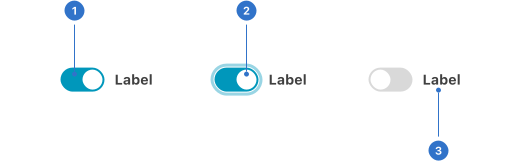
- Background: the colour of the component backdrop.
- Handle: a graphical element representing the switch.
- Label: the toggle name or title.
Live playground
States
- Default communicates that a component or element is interactive.
- Hover communicates when a user has placed a cursor above an interactive element.
- Focused communicates when a user has highlighted an element, using an input method such as a keyboard or voice.
- Selected communicates a user choice.
- Disabled indicates that the element is not interactive and cannot be selected.
Format
Size
Toggle is available in small, medium and large which can be used according to context.
Accessibility
Shell DS components are programmatically determinable with appropriate semantic markup and are designed to meet colour contrast requirements. If you’re not using Shell DS code, you will need to cover the accessibility considerations for each component in this pattern.
- The state of the toggle must be programmatically identifiable for assistive technology.
- The label must be programmatically identified as relating to the toggle button.
- The role of the toggle must be programmatically identifiable so that a screen reader announces to the user that it is a toggle button.
Every effort has been made to ensure that the Shell Design System follows accessibility best practice.
The Shell DS React framework incorporates keyboard operation to support the widest variety of assistive technologies and devices. For any future frameworks other than React, accessibility will need to be reviewed.
Help us to help you by contacting the Accessibility team for support and information regarding any questions relating to accessibility.
Related
Is this page useful for you?
Your feedback helps to improve our documentation.