 GitHub
Alert

An alert is a notification of a system event, or a prompt to take action.
Usage
Do
- Use to notify someone of a system event.
- Use to prompt someone to take action.
- Ensure the alert is visible and prominent.
- Keep content succinct.
Don't
- Avoid overly frequent alerts.
- Never display too many alerts simultaneously.
Anatomy
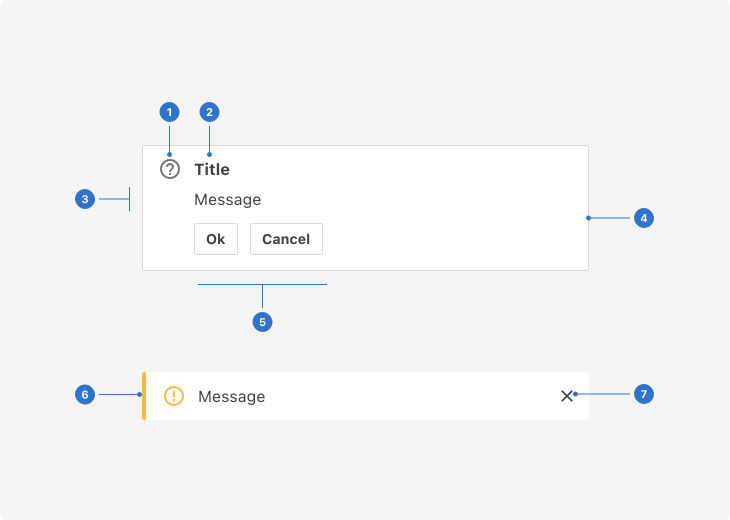
- Icon: visual signage to complement the label or message.
- Label: the subject of the alert.
- Message: information for the user to respond to the alert.
- Border: the linear frame around the alert panel to indicate status.
- Buttons: action buttons which interact with the alert pane.
- Indicator: a stylistic feature to highlight notification.
- Dismiss: a clickable icon to close the alert notification.
Live playground
Types
An alert is available in two types.
Elevation
- Overlay page content.
- Should be time-based and/or dismissible.
Inline
- Appears within page content, in close proximity to the item requiring user attention.
- Doesn’t dismiss automatically, but remains on the page until the user dismisses it or takes action.
Sentiments
An alert always has a semantic meaning and uses colour to add visual meaning. The following states are available.
- Neutral indicates something is neither good nor bad and doesn’t require much attention.
- Positive indicates something is good, correct, successful or safe and should be noticed.
- Negative indicates something is bad, wrong, unsuccessful or dangerous and should be noticed.
- Information indicates something which is only informational but should be noticed.
- Warning indicates something which is critical or requires caution and should be noticed.
Format
Size
There are three sizes available, small, medium and large.
Placement
An alert is flexible and can appear anywhere on the page, depending on context.
Content
Writing copy for alerts
- Keep the message concise and the language simple.
- Be specific rather than generic.
- Include a 'next' action, if one is needed.
Behaviours
Appearing
An alert appears in response to a system event, or when a page has loaded.
Dismissible
Dismissible alerts may remain on-screen until dismissed by the user.
Stacking
Elevated alerts can be vertically stacked.
External libraries
Alert component can be used with external code libraries such as react-toastify.
Accessibility
Shell DS components are programmatically determinable with appropriate semantic markup and are designed to meet colour contrast requirements. If you’re not using Shell DS code, you will need to cover the accessibility considerations for each component in this pattern.
Critical alerts
Critical alerts must be noticeable for all users and should remain until dismissed. Consider how an alert will affect the keyboard focus after it is closed, so that the user's journey is not negatively affected.
Keyboard
Use tab to move to close 'x'. To close notifications, press enter or space while the close 'x' has focus or use the esc key.
Screen readers
Voiceover: to close notifications, press enter or space while the close 'x' has focus, or use the esc key.
Every effort has been made to ensure that the Shell Design System follows accessibility best practice.
The Shell DS React framework incorporates keyboard operation to support the widest variety of assistive technologies and devices. For any future frameworks other than React, accessibility will need to be reviewed.
Help us to help you by contacting the Accessibility team for support and information regarding any questions relating to accessibility.
Related
Is this page useful for you?
Your feedback helps to improve our documentation.