 GitHub
Dialogs

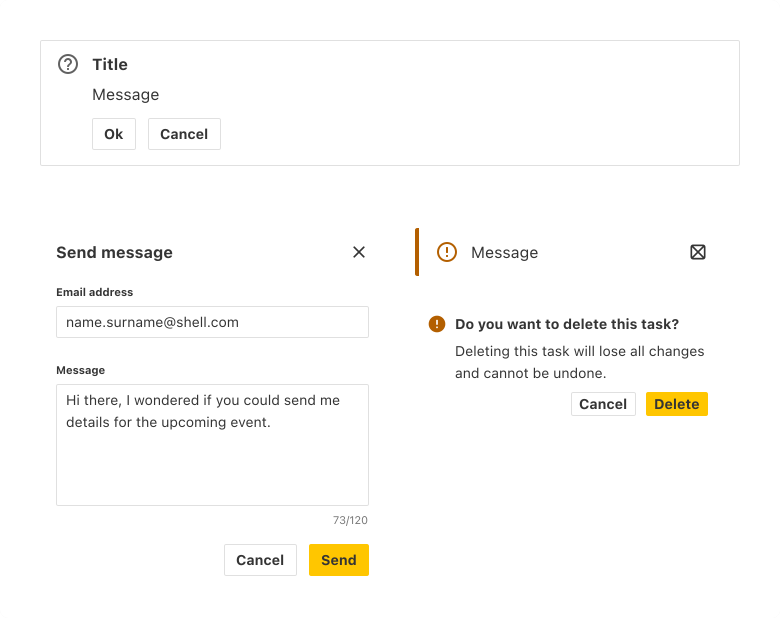
Dialogs provide users with contextual information or a prompt to take action.
Examples
Alert
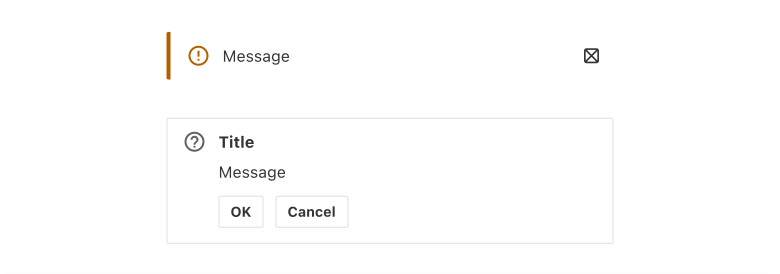
An alert shows warnings, critical errors, success messages or other important information to users.
When to use
To alert users about task-related information and make decisions.
When not to use
- For showing complex information.
- For decorative purposes.
- For trivial messages which do not require immediate attention.
Best practice
Purposeful
Prioritise critical alerts and avoid distracting users with less important messages.
Responsive
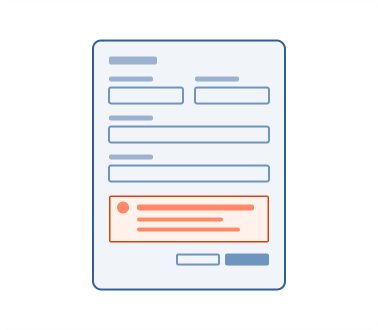
An alert must adapt to different screen sizes and devices to be readable and useable.
Communicate consistently
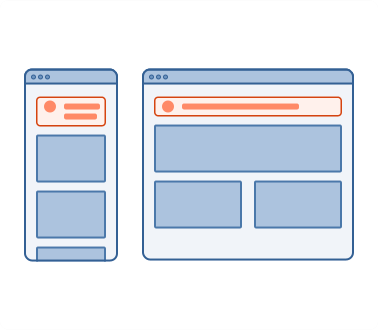
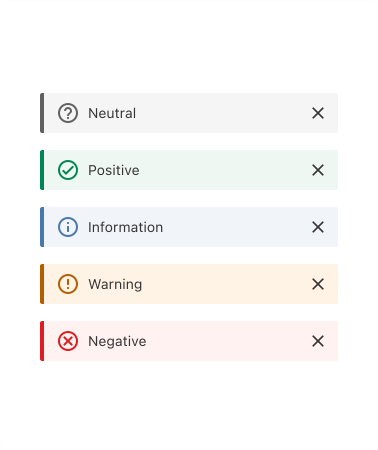
Match the sentiment of the alert with its appropriate colour.
Actionable
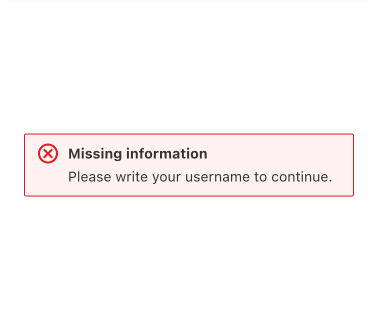
Explain the purpose of the alert and write clear instructions so that users understand how to resume their workflow.
Modal
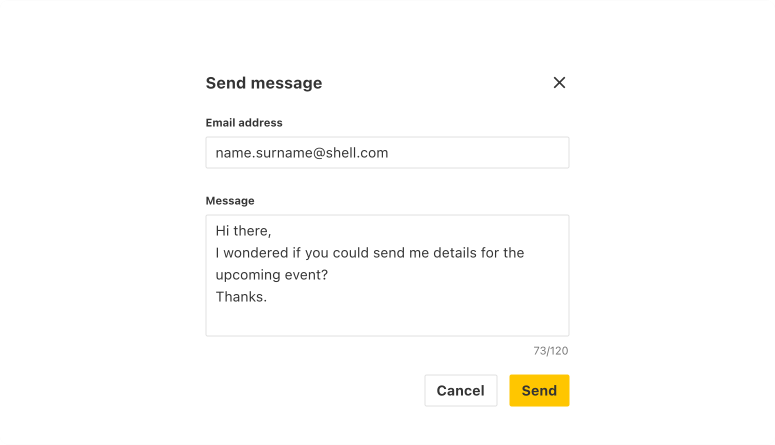
A modal overlays a page and focuses user attention on a task or information.
When to use
- To display supplementary information.
- To collect specific user input e.g., confirmation dialogs for deleting or completing a task.
- To guide users through sequences in tasks.
When not to use
- For presenting information that doesn't require immediate attention.
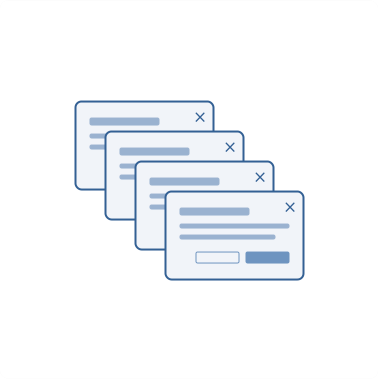
- Don’t use more than one modal at a time.
- Avoid using multiple modals in quick succession.
Best practice
Clear exit option
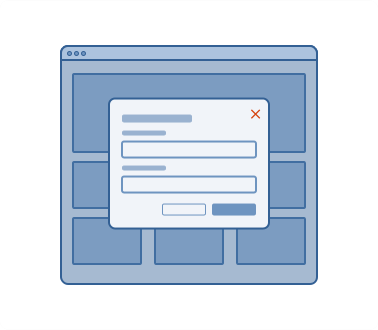
Provide a prominent close button or an overlay area outside the modal that allows users to click or tap to close the modal.
Communicate with purpose
Write concise and consistent titles, labels and descriptions. Button labels should be a single, precise action word.
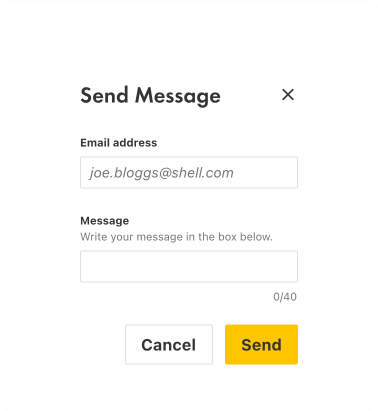
Avoid lengthy content
Use an expandable panel or a page to avoid overwhelming users with excessive text or too many options.
Prominent and clear placement
Place modals in a prominent location so that users notice them. Typically, this would be top-centre.
Avoid overuse
Limit the number of modal notifications throughout as they can disrupt the user flow.
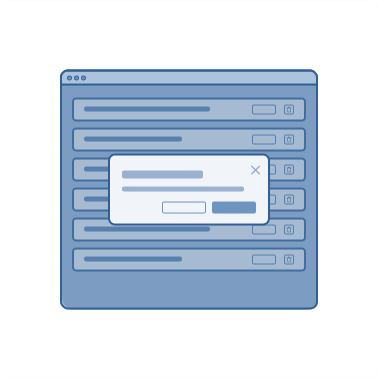
Cancellation
When seeking user confirmation for critical actions, include a secondary confirmation step to prevent accidental actions.
Popconfirm
A popconfirm prompts users to confirm or cancel an action.

When to use
To confirm a user’s action e.g., deleting a file.
When not to use
- For common actions that do not have significant consequences or are easily undone.
- If the consequences of an action can be understood through labels or tooltips.
Best practice
Clear option to exit
Include a ‘Cancel’ or a ‘Close’ button so that users can change their minds and close the popconfirm.
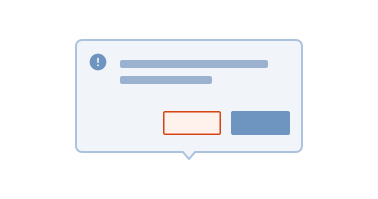
Communicate clearly
Content in popconfirm should clearly state the action the user is about to perform and the potential consequences.
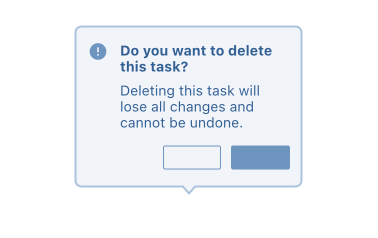
Be specific
Label buttons with actions, e.g. ’Delete’ and ‘Cancel’ and avoid vague words such as ‘OK’ or ‘Continue’.
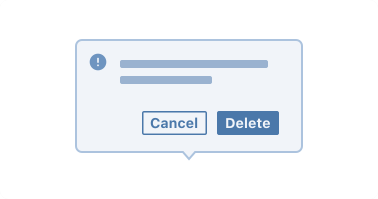
Maintain style
Design popconfirm using a consistent style to help users easily recognise them.
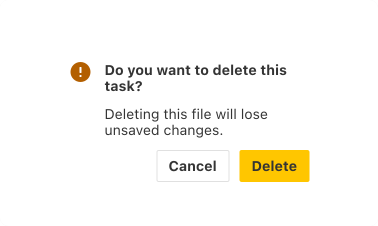
Accessibility
Shell DS components are programmatically determinable with appropriate semantic markup and are designed to meet colour contrast requirements. If you’re not using Shell DS code, you will need to cover the accessibility considerations for each component in this pattern.
Keyboard navigation
Tab
The focus moves to the next interactive element within the dialog.
Shift + Tab
The focus moves to the previous interactive element within the dialog.
Enter or Space
Triggers the focused element to starting action
Escape
Closes the dialog.
Related
Is this page useful for you?
Your feedback helps to improve our documentation.