 GitHub
Tree

A tree allows a user to view and navigate nested levels of an information hierarchy.
Usage
Do
Use a tree to display and allow a user to navigate a structured hierarchy.
Don't
- Never use a tree for expanding or collapsing content sections, use an accordion instead.
- Avoid indicating page location in a tree, use a breadcrumb instead.
Anatomy
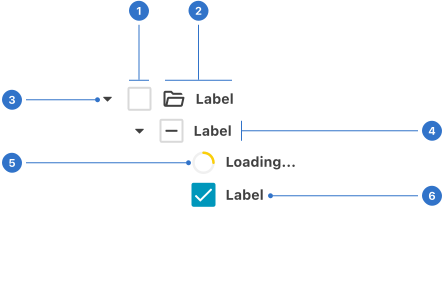
- Checkbox: a selectable widget that enables a binary choice.
- Label with icon: the checkbox name with a supporting graphic.
- Caret: the icon indicating an expanded or collapsed state.
- Indent: the placement of the component from the original margin.
- Loading: indicating the checkbox is loading.
- Label: the text representing the checkbox name.
Live playground
Types
Basic
A basic tree provides a tree structure with named nodes and a popover icon to expand and collapse child nodes.
Variants
With icons
Include icons to represent the type of nodes within that group. Icons appear between the collapse/expand icon and the parent node label.
With checkboxes
Use checkboxes between the collapse/expand icon and the name to show whether a node is selected.
States
- Unselected indicates the checkbox is empty.
- Selected communicates that the checkbox is ticked.
- Loading indicates a selection is in progress.
Format
Indentation
Every level of the tree hierarchy is indented to clearly indicate the child/parent relationship.
Content
The title should be clear and concise. Additional content, such as an avatar, icon, label or description can be attributes of the node.
Behaviours
Selectable
Each node in the tree can be selected with a checkbox. Selecting a node automatically selects all children nodes. The checkbox’s indeterminate state is displayed if some, but not all, child nodes have been selected.
Expand/Collapse
Pressing the caret icon to the left of a node expands or collapses the node which displays or hides child nodes.
Accessibility
Shell DS components are programmatically determinable with appropriate semantic markup and are designed to meet colour contrast requirements. If you’re not using Shell DS code, you will need to cover the accessibility considerations for each component in this pattern.
Names and labels
The tree must be given an accessible name. Either a visible label referenced with aria-labelledby or specify a label with aria-label.
Menu orientation
Elements with the role tree have an implicit aria-orientation value of vertical. If the tree element is horizontally oriented, include aria-orientation="horizontal".
Every effort has been made to ensure that the Shell Design System follows accessibility best practice.
The Shell DS React framework incorporates keyboard operation to support the widest variety of assistive technologies and devices. For any future frameworks other than React, accessibility will need to be reviewed.
Help us to help you by contacting the Accessibility team for support and information regarding any questions relating to accessibility.
Related
Is this page useful for you?
Your feedback helps to improve our documentation.