 GitHub
Search

Search patterns suggest methods for finding information quickly and easily within a site or application.
Type ahead search
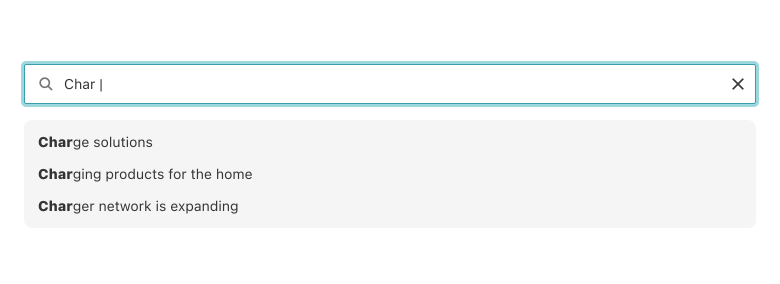
A type ahead search gives real-time suggestions to users as they type in the search bar.
When to use
- To help users correct misspellings or variations of search terms.
- To provide context-specific suggestions when search terms have multiple possible meanings.
When not to use
- If extensive searching is not required and information is easily available.
- If a clean and minimal user interface is a priority.
Best practice
Real-time suggestions
Provide instant suggestions as users type in the search query. The suggestions should update dynamically to reflect the most relevant and recent options.
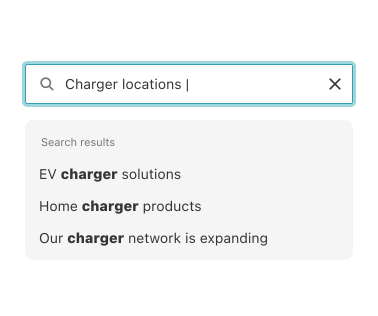
Highlight suggestions
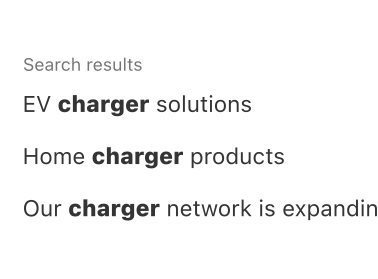
Use visual cues to differentiate and highlight the suggested options from the user's input.
Basic search
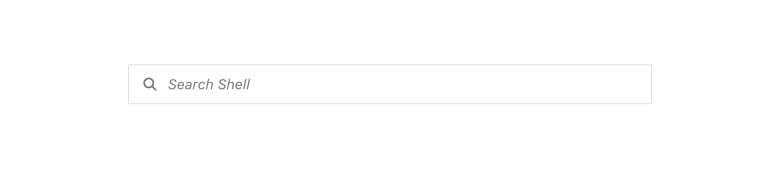
A basic search lets users input a term associated with information they are looking for and the user is then routed to a results page.
When to use
- When users know or have an idea about what they are looking for.
- The website or application has a complex or deep information architecture.
When to not use
If the information is easily accessible through other navigation options, e.g. links or pagination.
Best practice
Localisation
Consider the reading direction of your target audience (left to right or right to left) and design the search field accordingly.
Use an icon
UA magnifying glass icon along with placeholder text should indicate the field is intended for search. Avoid using a label to identify a search field.
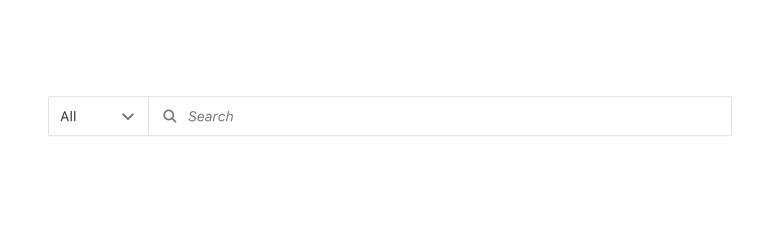
Add a scope filter
An optional scope filter allows users to search within a category to provide fewer, more specific results.
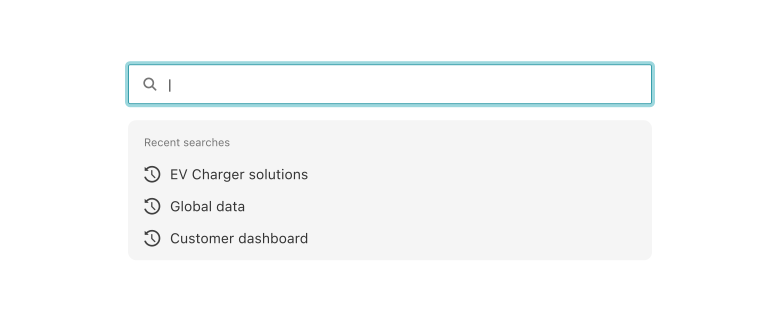
Recent search
When users select the search field, they are presented with recent searches. These are replaced by search suggestions as they start typing.
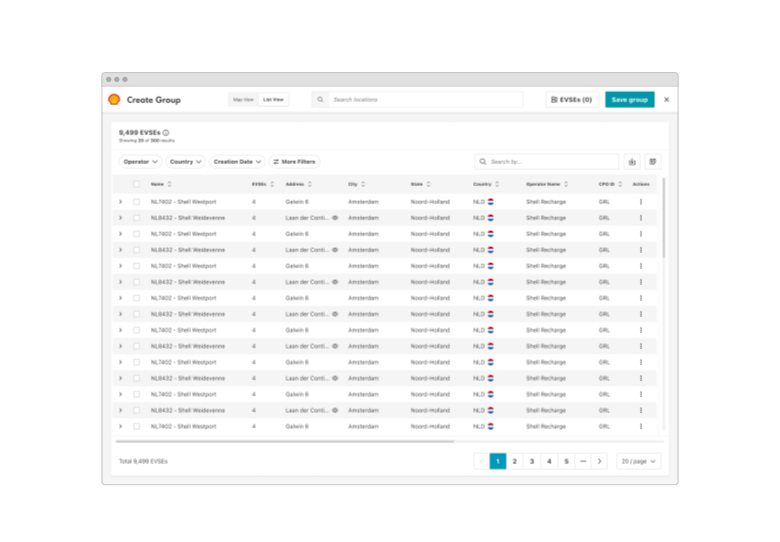
Results page
A results page displays search results related to a search query in a structured format.
When to use
- For a vast amount of content such as articles, products, or user-generated content to display.
- To present search results in a structured manner.
- To enable users to filter and sort through search results.
When to not use
- If your website has a small amount of content with a simple navigation structure.
- If a search or query only gives a single result.
- If users only need to view search results without further actions or exploration.
Best practice
Avoid dead ends
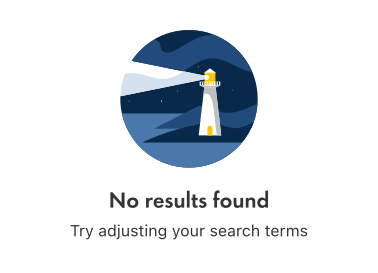
If a search returns no results, provide suggestions and assistance to the user to aid their search. An empty state can assist users in this situation.
Relevant sorting options
Provide sorting options to allow users to reorder the search results based on different criteria, such as relevance, date, popularity or alphabetical order.
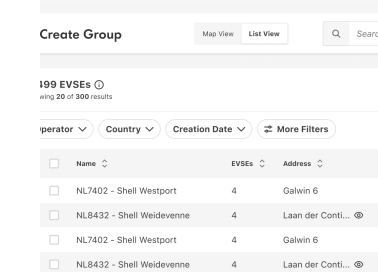
Relevant filtering options
Provide filters when there is a large number of results to display so that users can refine their search.
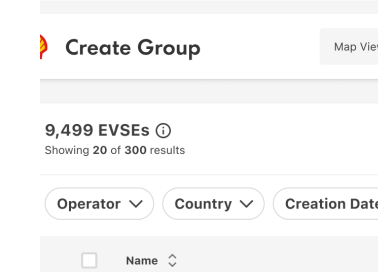
Break down results
If there is a large number of results, provide pagination, a load more button or infinite scrolling to aid navigation and improve load times.
Accessibility
Shell DS components are programmatically determinable with appropriate semantic markup and are designed to meet colour contrast requirements. If you’re not using Shell DS code, you will need to cover the accessibility considerations for each component in this pattern.
Assistive technology
If the search is one of the main functionalities it should be marked as a landmark for assistive technologies. Make sure the input is identifiable and understandable by AT by providing information of what the context the user is gonna be searching on.
Markup
Markup the search results using appropriate HTML elements. For example, use article or li for individual search result items and h2 for the result titles. This helps assistive technologies and search engines to understand the structure and hierarchy of the content.
Alternative text
Use aria-label to provide alternative text for elements that lack visible labels, or aria-live to announce dynamic updates in search results, such as real-time filtering.
Code consideration
Make sure the input is marked as input[type=”search”].
Help us to help you by contacting the Accessibility team for support and information regarding any questions relating to accessibility.
Related
Is this page useful for you?
Your feedback helps to improve our documentation.