 GitHub
Overview

Components are the foundational elements which combine to create a complete design ecosystem for digital products at Shell.
Data display
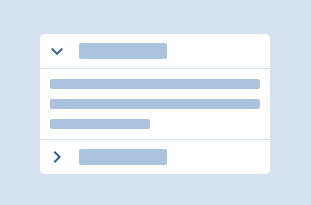
Accordion
An accordion expands and collapses content.

Avatar
An avatar is used to represent a persona as an image, label or icon.
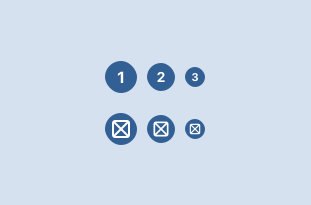
Badge
A badge provides additional visual information.
Stat
A stat is used to display a statistic.
Stepper
A stepper conveys progress to the user with sequenced steps.
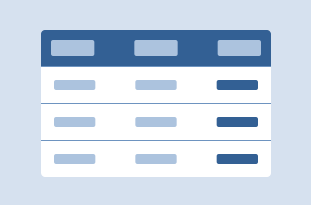
Table
A table is used to display data in cells, rows, and columns.
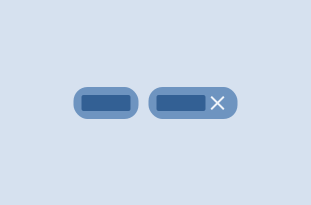
Tag
A tag is used to label, categorise and organise items using keywords and icons.
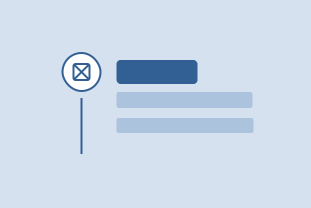
Timeline
A timeline component displays a chronological sequence of events or activities in a vertical or horizontal layout.

Tooltip
A tooltip is a label that shows information to users when they hover, focus, or press.
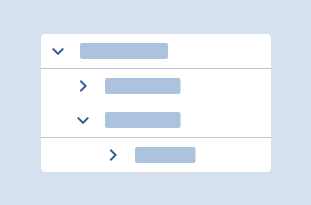
Tree
A tree component lets users see and navigate structured information which is hierarchically nested.
Feedback
Alert
An alert is used to present the user with important messages.

Empty state
Empty states display when content can’t be shown.

Loading
A loading component informs users that a system process is in progress.
Popconfirm
Popconfirm subtitle
Progress bar
A progress bar displays the status of an ongoing process.
Navigation
Breadcrumb
A breadcrumb indicates the user's current location within a hierarchy.
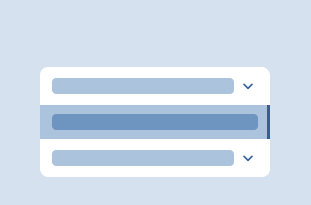
Menu
A menu displays a list of navigation options or actions a user can select from.
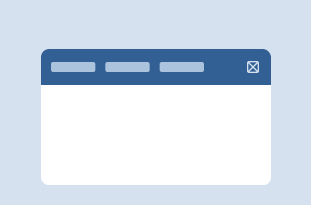
Navbar
A navbar links to page sections or to pages.
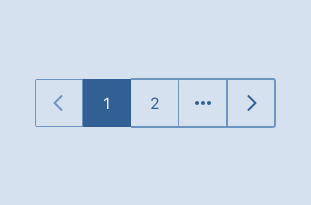
Pagination
Pagination displays the elements available for loading in a given context. It also shows where the users are currently located and lets them access previous or subsequent content options.
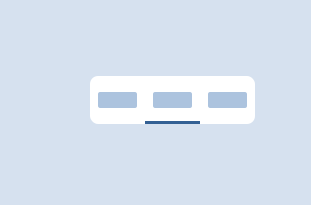
Tabs
Tabs is used to navigate different views that share the same context.
Data input
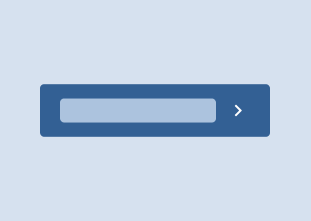
Button
A button allows a user to initiate an action.
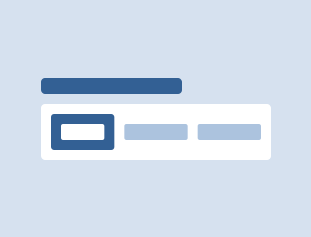
Button group
A button group is a set of input components grouped in a logical set.
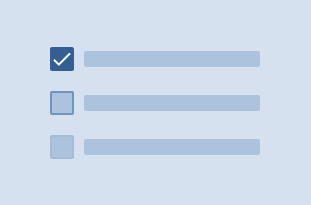
Checkbox
A checkbox is used to select one or more items from a list of options.
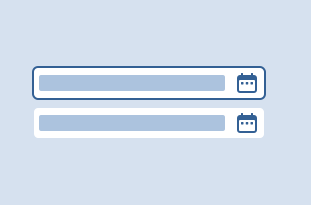
Date picker
A date picker allows users to select a valid date or a date range.
File uploader
File uploader subtitle
Form field
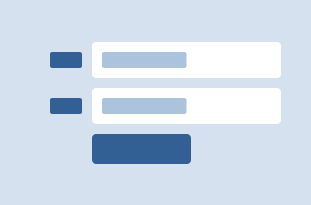
A Form field contains a label, an input and helper text.
Radio button
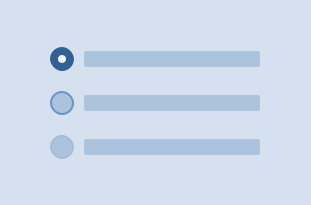
A radio button is used to select a single item from a list of options.
Select
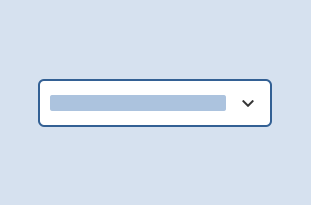
A select component lets a user choose one or many items from a list of options.
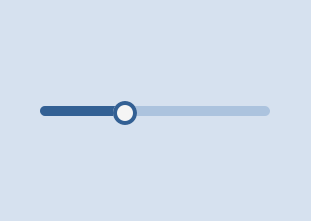
Slider
A slider provides visual controls and value indicators so that users can set, increase, or decrease values or value ranges, by moving horizontal or vertical handles on a track.
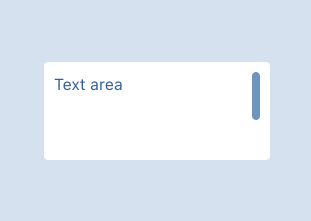
Text area
An text area allows users to enter data.
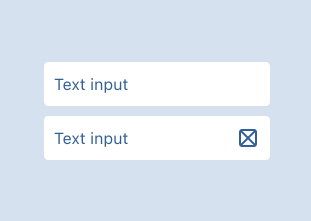
Text input
A text input allows users to enter data.
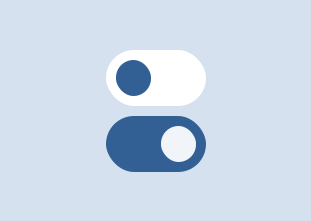
Toggle
A toggle is a control used to switch between two states.
Toggle button
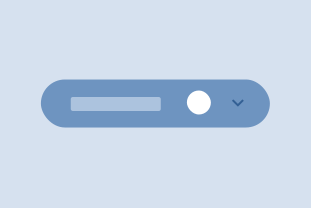
A toggle button allows users to select one option from multiple options.
Layout
Card
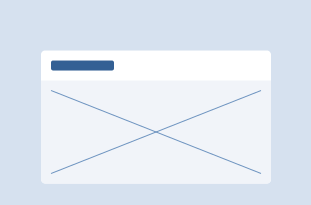
A card is a container used to visually group related content.
Divider
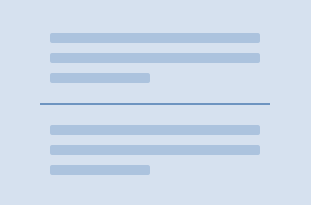
A divider is a line that separates content.
Drawer
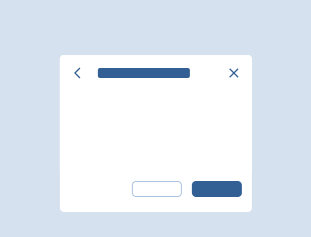
A panel which slides in from any edge of the screen and is layered on top of content.
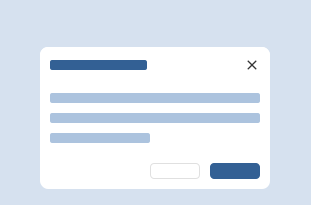
Modal
A modal is an element that displays over the current view to display information or obtain user input.
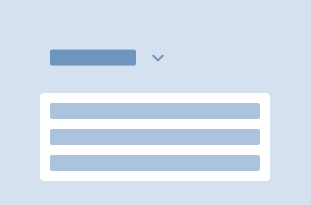
Popover
A popover is a UI element which appears with additional content when users click it.
Badge

Pecten
The pecten is Shell’s official logo.