 GitHub
Pictograms

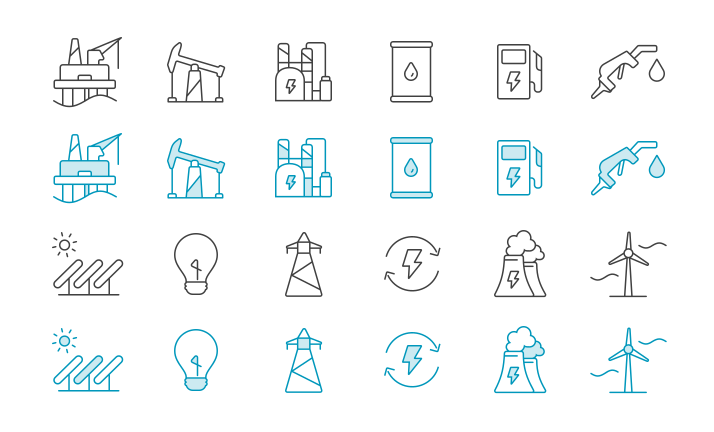
Pictograms visually represent ideas and objects. They simplify complex facts, subjects and insights which improves data recall for users by decreasing mnemonic load. Pictograms make information interesting and memorable by creating more visual impact.
Usage
Pictograms help you tell a visual story and improve user engagement. They can be used for designing websites, applications, reports, presentations, infographics and digital products.
Pictograms vs icons
Pictograms have more visual detail and depth than icons. Icons have a lower density than pictograms.
When to use pictograms
To represent categories and themes, highlight information and draw attention to related content.
When to use icons
To display warnings, alerts or universal signs such as danger. For country flags, page navigation and improved functionality.
Types
Pictograms are categorised into two types based on the context they are used in.
Non-emphasised
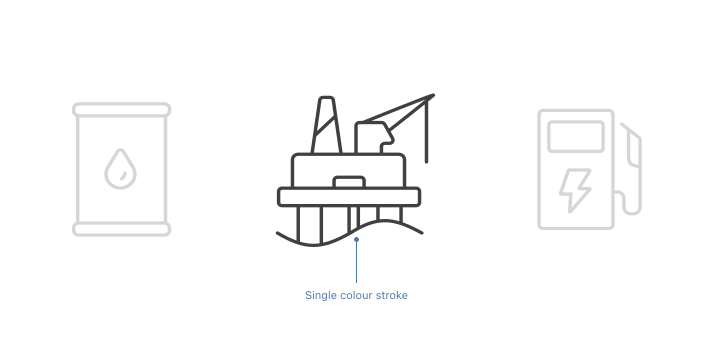
Non-emphasised pictograms are minimal and linear. They can be used as default.
Emphasised
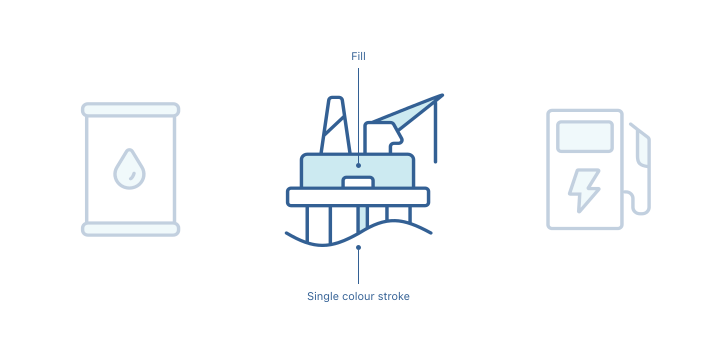
Emphasised pictograms use colour to showcase more depth and dynamism. They can be used selectively to highlight information, draw attention or as a design style.
Designing pictograms
Sizes
Our pictograms are drawn on a pixel grid of 48 x 48px. Use this grid as a guide to ensure pixel-perfect accuracy. Design them at 100% to ensure correct scaling.
Live area
Pictogram is set to a 40 x 40 pixel live area, with 4px padding around the edge.
Padding
4px of clear space creates the padding which surrounds the 48 x 48px live area.
Keyline shapes
Use the keylines to ensure a consistent size for basic shapes and proportions across the set of pictograms. They enable a visually stable foundation, and complement the proportions of the objects they represent.
Square
Height: 36px
Width: 36px
Circle
Diameter: 40px
Rectangle vertical
Height: 40px
Width: 32px
Rectangle horizontal
Height: 32px
Width: 40px
Colour
Non-emphasised pictograms have a solid, monochromatic colour with a 4.5:1 colour contrast ratio, like typography.
Clarity
Position pictograms on pixels by making X and Y coordinates into integers to avoid distorting them. This also avoids sub-pixel interpolation issues when the pictogram is rendered.
Ensure that paths are situated on whole pixels or aligned to the nearest pixel.
Never position paths in the centre of pixels as it causes poor render of the path.
Strokes
Ensure the visual weight of a 1.5px stroke is maintained so that pictograms look consistent.
Stroke terminals
For stroke terminals, use a radius of 0.5px.
Use a 0.5px radius on stroke terminals.
Never use square terminals on strokes.
Corner radius
A pictogram’s corner radius consists of curved exterior corners. The recommended corner radius values are between 0.5px and 4px.
Is this page useful for you?
Your feedback helps to improve our documentation.